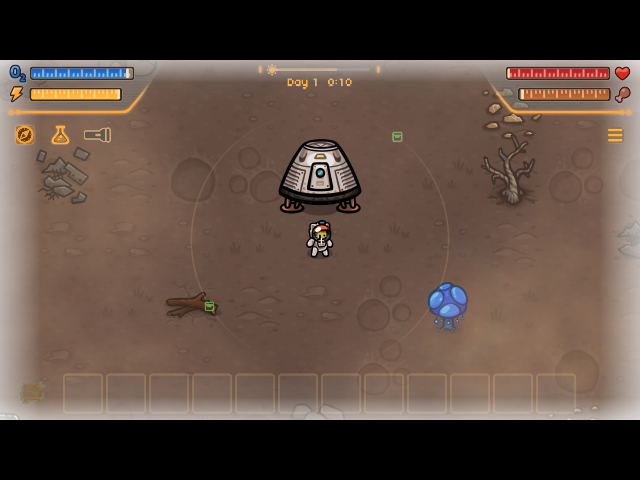
Bring your game
Use your owned Windows MewnBase 1.0.1 installation or saved download from Cairn4. Extract the Windows ZIP, then copy game/desktop-1.0.jar and the entire matching data/ folder into the installed mewnbase/ directory. Keep both folder names. Do not copy the Windows EXE, Windows Java runtime, settings or personal saves. No conversion is required.
The current store download may be newer. Version 1.0.2 remains unverified; no 1.0.2 installation was available for compatibility testing. To test your owned 1.0.2, use a separate installation, replace both game/ and data/ with matching files and create an empty mewnbase/allow-unverified-1.0.2.txt. The host checks the version and basic dependencies, but this is not a promise that 1.0.2 will run. Saves are separated by version.
Supported 1.0.1 archive SHA-256 (game/desktop-1.0.jar):
9452d5588c457995599a3fb95ef6d570fa4aa2f3d367bd0dbe2d63a303272b6cCompare it with Get-FileHash -Algorithm SHA256 "game/desktop-1.0.jar" in PowerShell, or sha256sum "game/desktop-1.0.jar" on Linux. A different build needs a compatibility check.
Install the port
- Update PortMaster. Copy MewnBase.zip into its
autoinstall/folder and open PortMaster. - Allow PortMaster to download Westonpack and Java 17. An internet connection is needed if these runtimes are not installed.
- Copy the owned game files into
mewnbase/as described above. Launch MewnBase from your ports menu.
Manual installation paths
1. Update PortMaster. Put MewnBase.zip in PortMaster's autoinstall/ directory, then open PortMaster to install it. Connect to the network to download Java 17 and Westonpack if they are not installed yet. 2. Copy the owned file to <ports directory>/mewnbase/game/desktop-1.0.jar, and the complete matching data folder to <ports directory>/mewnbase/data/. 3. Launch MewnBase from your firmware's ports menu.
For manual installation on muOS, extract the ZIP on your computer and copy MewnBase.sh to <SD card>/roms/PORTS/, and the mewnbase/ folder to <SD card>/ports/ on the card configured as the firmware's ports location. The required file is <SD card>/ports/mewnbase/game/desktop-1.0.jar.
For ArkOS/dArkOS and standard ports layouts, extract the ZIP into your configured ports directory (for example /roms/ports/ or /roms2/ports/) so MewnBase.sh and mewnbase/ are beside each other. Use the firmware's configured ports location; the launcher uses PortMaster's directory value. Avoid creating an extra MewnBase/ wrapper folder.
Handheld controls
| Control | Action |
|---|---|
| D-pad | Move mouse cursor, including on devices without sticks |
| Left stick | Walk (W/A/S/D), when present |
| Right stick | Move mouse cursor, when present |
| A | Left mouse button; hold to drag or use tools |
| B | Right mouse button |
| X | Inventory / research (Tab) |
| Y | Map (M) |
| Start | Pause / options / back (Escape) |
| Select | Hold for alternate keyboard controls |
| Select + Y / A / X / B | Walk up / down / left / right (W/S/A/D) |
| L1 | Hold for slower mouse movement |
| R1 | Rotate tile (R) |
| L2 | Enter / vehicle interaction |
| R2 | Space / vehicle drift |
| Select + L1 | Begin text entry, then release both buttons |
| Select + R1 | Flashlight (F) |
| Select + L2 | Drop item (Q) |
| Select + R2 | Shift + Q |
| Select + D-pad up / down | Scroll mouse wheel up / down |
| Select + Start | Exit; save through the game first |
On RG34XX SP and other devices without sticks, use the D-pad for the cursor and hold Select with the face buttons to walk. There is no host cursor/movement toggle. gptokeyb2 supplies real keyboard, mouse-button and pointer events. Use the cursor to click slots and drag scrollbars.
Click a text field, press Select + L1, then release both buttons. During text entry, D-pad up/down chooses a letter, right advances, left deletes, A adds a letter; B deletes. Start confirms and leaves text entry. Select cancels. Focus a game text field before starting.
Saves & troubleshooting
Back up mewnbase/userdata/<game-version>/ before updates. Worlds are in its saves/ subfolder. Read mewnbase/log.txt if startup fails. Report your device, exact firmware version, resolution and steps to reproduce, and attach the log. Test menu navigation, gameplay, audio, game speed, save/reload, suspend/resume and clean exit. Keep purchased game files private.