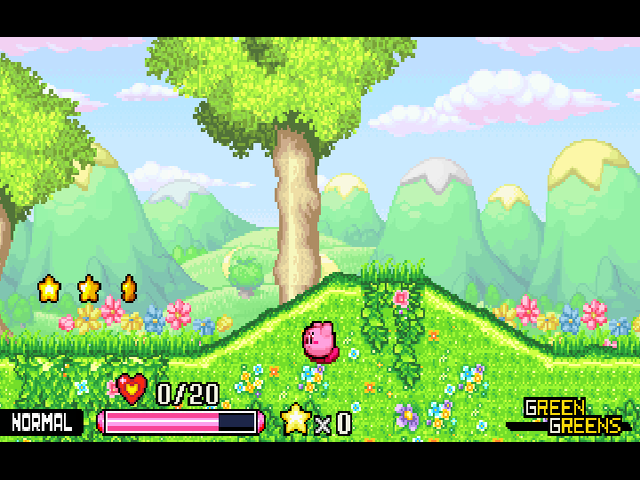
Bring your game
Windows: 1. Download Kirby - Wacky Episode.zip from the game page. Use the playable Windows download, not the Project Files archive. 2. Extract the game ZIP on your PC. Keep these original files for backups and future installations. 3. Install this port ZIP into your SD card's ports directory. It provides Kirby - Wacky Episode.sh and the lowercase kirbywacky folder. 4. Copy the contents of the extracted Windows game into <ports directory>/kirbywacky/assets/. Put data.win, audiogroup1.dat, audiogroup2.dat, and the accompanying files directly inside assets, without another enclosing folder. 5. Launch Kirby - Wacky Episode from your firmware's ports menu. First launch uses the template patcher to export textures, apply compatibility fixes, compress audio, and build game.port. It can take several minutes. Later launches use the prepared files.
Linux: Extract the same Windows game ZIP with your archive manager, then follow steps 3–5. No PC patching or GameMaker installation is required.
Supported build: Windows version 1.0.1. Supported SHA-256 (data.win): ``text 109833f9e1b33765b1a59b46b2aae7153fd6cc49bd4f4d1c0c6940702eb95695 ``
First-run preparation needs the current PortMaster, GMToolkit (gmtoolkit.squashfs), and .NET 8 (dotnet-8.0.12.squashfs) runtimes. The launcher requests missing runtimes through PortMaster; they can also be installed from its Runtime Manager. This package requires ARM64 / aarch64 firmware with glibc 2.30 or newer.
Preparation consumes the copied files in assets after packing them. Keep the PC originals. Back up kirbywacky/saves/ before updating; this folder also contains the generated textures. If startup fails, check kirbywacky/log.txt and kirbywacky/patcherr.txt. After a failed preparation, recopy the original Windows files into assets before trying again.
The working baseline has been tested on RG34XX with muOS: menus, sound, controller input, saving, slopes, and gameplay work according to the tester. Testing on R36S/ArkOS, Rocknix, AmberELEC, other devices, and the full game is still open. Report the device, firmware version, screen resolution, reproduction steps, and fresh log. Share this port ZIP; each tester should obtain their own Windows game download.
Install the port
- Update PortMaster. Copy kirbywacky.zip into its
autoinstall/folder and open PortMaster. - Allow PortMaster to download gmtoolkit and dotnet-8.0.12. An internet connection is needed if these runtimes are not installed.
- Copy the owned game files into
kirbywacky/as described above. Launch Kirby: Wacky Episode from your ports menu.
Manual installation paths
Handheld controls
| Control | Action |
|---|---|
| D-pad left / right | Arrow keys / Move / navigate |
| D-pad up | UP / Enter doors / open chests / navigate |
| D-pad down | DOWN / Crouch / swallow / navigate |
| A | X / Attack / inhale |
| B | Z / Jump / float |
| X | C / Swap copy ability |
| Y | SPACE / Guard |
| L1 | C / Swap copy ability |
| R1 | SPACE / Guard |
| L2 / R2 / L3 | ALT / Dash |
| Start | ENTER / Pause menu |
| Select | SHIFT / Drop copy ability |
| Left stick | Same directions as the D-pad |
| Select + Start | Exit; save through the game first |
Use the game's default keyboard bindings. Button names follow PortMaster's controller mapping and can differ from printed labels. The launcher uses gptokeyb2 with -c kirbywacky.ini; GMLoaderNext's native controller input remains enabled. The original download includes the complete ability moveset guide.