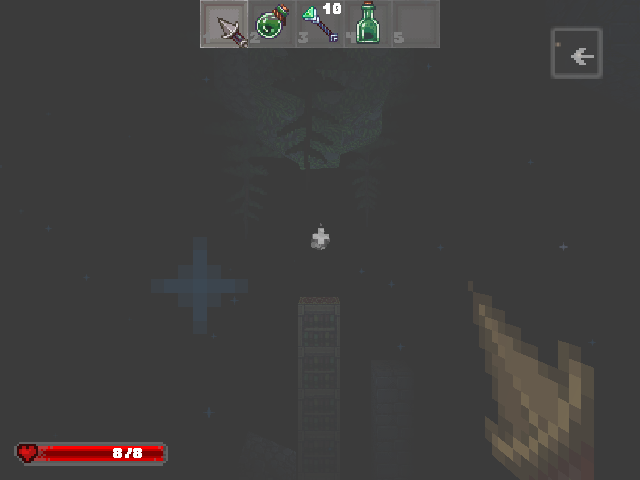
Bring your game
This port requires Delver v1.08, Windows Steam depot 249631, manifest 6680730644186394716. The supplied installation folder was labeled build 7583356. The exact manifest and JAR fingerprint below identify the supported input.
1. Own Delver on Steam and sign into the Steam desktop client with that account. 2. Press Windows + R, enter steam://open/console, and press Enter. 3. In Steam's Console tab, enter the following command, without quotes or asterisks:
download_depot 249630 249631 66807306441863947164. Wait for Steam to report that the depot download has completed. Open the directory printed by Steam, usually <Steam>/steamapps/content/app_249630/depot_249631/. 5. Copy delver.jar into the installed port's delver folder. Keep the filename lowercase and leave the JAR intact. Do not copy DelvEdit.jar, the EXE launchers, the Windows JRE or steam_appid.txt.
Required delver.jar: 69,330,539 bytes. SHA-256:
a2d58e87b09f588ff8389508e43accf7d3c6ce949b5aa4d31d6380574ec095aeCheck it in PowerShell:
Get-FileHash -Algorithm SHA256 -LiteralPath "C:\path\to\depot_249631\delver.jar"A current Steam download or a different depot manifest is not automatically compatible. If Steam cannot download this manifest, confirm ownership and report the console error; do not substitute an unrelated JAR. No PC conversion is needed: the handheld reads the owned JAR directly. The port cannot create purchased game data without it.
Install the port
- Update PortMaster. Copy Delver.zip into its
autoinstall/folder and open PortMaster. - Allow PortMaster to download Westonpack and Java 17. An internet connection is needed if these runtimes are not installed.
- Copy the owned game files into
delver/as described above. Launch Delver from your ports menu.
Manual installation paths
1. Copy Delver.zip to PortMaster's autoinstall/ folder and open PortMaster. Keep the handheld online for any required runtime downloads. 2. Copy the verified game JAR to <ports directory>/delver/delver.jar. 3. Refresh the firmware's ports list if needed, then launch Delver.
On muOS, the game file belongs at <SD card>/ports/delver/delver.jar. For manual installation, extract the ZIP, put Delver.sh in <SD card>/roms/PORTS/, and put delver/ in <SD card>/ports/ on the same card. On ArkOS/dArkOS and standard PortMaster layouts, put Delver.sh beside delver/ in the configured ports directory. Do not add an extra wrapping folder.
Handheld controls
| Control | Action |
|---|---|
| Left stick / D-pad | Move forward/backward and strafe (WASD) |
| Right stick | Look / move menu cursor |
| A | Use / interact (E) |
| B | Jump (Space) |
| X | Inventory (I) |
| Y | Map (M) |
| L1 / R1 | Previous / next item |
| L2 | Drop item (Q) |
| R2 | Attack / click menu or inventory item (left mouse) |
| R3 (hold) | Slower mouse movement |
| Start | Pause / options / back (Escape) |
| Select (hold) + A | Enter / confirm |
| Select (hold) + B | Escape / back |
| Select (hold) + D-pad | Arrow keys |
| Select + Start | PortMaster exit shortcut |
The port uses gptokeyb2 keyboard and mouse emulation through delver/delver.ini. Direct gamepad input is disabled so physical joystick axes cannot also trigger attacks or drops. On ARM64 Linux the host reads only gptokeyb2's Fake Keyboard Mouse event device directly, then delivers its mapped keys, mouse motion and clicks to the game. This bypasses desktop focus/event-delivery problems without re-enabling native joystick input. A software cursor is shown in menus; use the right stick to point and R2 to click a save or menu item, while A confirms and Start goes back. In gameplay, R2 attacks through the game's left-mouse action. Two analog sticks are recommended for simultaneous movement and looking. Button labels follow the firmware's PortMaster controller mapping.
The package includes default controller settings at delver/options.txt, with jump set to Space (key_jump: 62) and mouse X/Y sensitivity set to 3. On first launch, these defaults are copied to save/options.txt only when that save file is absent, preserving existing settings. R2 remains the left-mouse click for menu selection and gameplay attack.
Saves & troubleshooting
Saves and game settings are in delver/save/. Preserve this folder when updating. Use the game's pause and quit flow to save before using Select + Start. Runtime temporary files are in delver/cache/; startup output is in delver/log.txt.
Control debug output is disabled to avoid continuous log writes during gameplay. Input failures and game errors are still logged. If the virtual device is missing, duplicated, unreadable or disconnected, the host reports the error instead of continuing with unusable controls. Close other running ports and restart if duplicate virtual devices are reported.
When reporting a problem, include the device, firmware version, ROCKNIX graphics driver if applicable, resolution, JAR checksum and steps to reproduce. Attach the log and test menu navigation, both sticks, triggers, combat, sound, save/reload and exit. Keep purchased game files private.
Steam achievements and Workshop integration are not active in the offline handheld launcher.